Feb. 1st - 28th: Typography Challenge 6 - Shaped Text Paths
This month I thought we could explore typing within containers--and to make it easy, I thought we should focus on custom shapes as our containers (though you can make your own container using the pen tool, if you have PS/CS). Your challenge, therefore, is to make a page that contains some text within a shaped container, other than a rectangle or square. Here are a few examples just to start you off:
By Alison Waken:

Another circle (by joscie):

Here's yet another circle (by nzingha), except here you don't even see the edges of the circle (you need smaller type to fill in the gaps with this technique):

And here's one I did in the shape of a star:
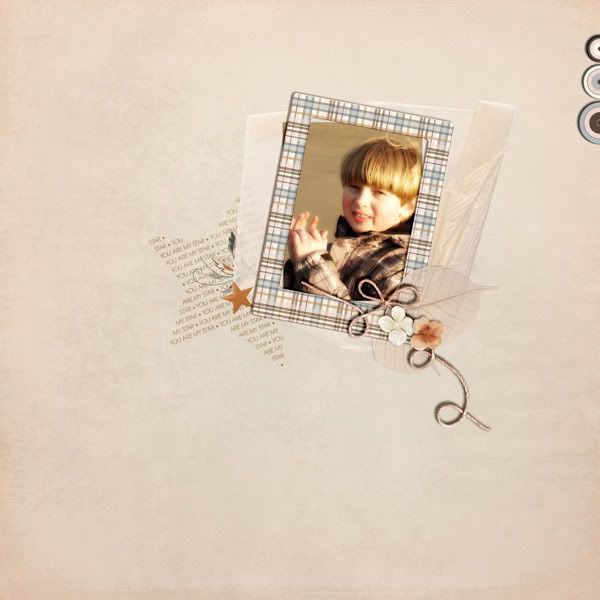
Now PSE doesn't play nicely on the path front, so I've made up a little downloadable folder with instructions, AND sample containers which you should be able to use in PSE (it works in PSE 7 is all I can say!). You can download the samples HERE.

What I've done is to make 4 sample shapes, filled with text, for PSE users to use, and I've included explanations for PS/CS users to work with custom shapes. I included a circle, a diamond, a heart, and an arrow.
Here's the skinny on the instructions (these are repeated in the download on the .pdf):
All Users:
Feel free to use the containers in the downloadable .psd file. In PSE, just open the file, double-click on the layer of the shape you want, and start typing! Adjust your type size, color, font, etc. as you wish, then drag the layer into the layout you’re working on.
PS/CS Users:
Select the Custom Shape Tool, and make sure the option is set to “Path” (see downloadable explanation picture 1 for what this looks like). Choose a custom shape. Place the cursor on the layout, then start dragging while holding the shift key (this will keep it proportional—don’t hold the shift key if you want different proportions). When you have your shape as you like it, switch to the type tool and hover over the shape until your cursor changes to an I with little dotted semi-circles on either side. Click inside the shape, and start typing!
You can resize these shapes with your move tool—just change the type back the way you want it after you’ve changed the size.
Enjoy, and feel free to drop me an e-mail @ hlmtaylor@gmail.com if you need any more help!
Remember, your challenge is to make a page that contains some journaling or other text inside of a container that is NOT a rectangle or square. Have fun!!
You can download the sample shapes and explanations HERE.
And I'd love it if you shared your experiments with us in the MScraps forum!


